Research data usually lives somewhere before it lives in K-Dense Web: an S3 bucket full of raw instrument output, a GCS bucket where a pipeline drops its results. Getting it into a session used to mean downloading it locally and re-uploading it, an extra step that gets old fast when a bucket has hundreds of files or when you're doing it every week.
Data Connectors remove that step. Connect your own Amazon S3 or Google Cloud Storage bucket once, then browse and import files straight into any session, no download-then-reupload required.
How to connect a bucket
Head to Account Settings → Data Connectors and click Add connection. Choose your provider, name the connection, and supply credentials scoped to read-only access: an access key ID and secret access key for S3, or a service account for GCS. You can optionally restrict a connection to a specific list of allowed buckets, so a single key only ever exposes the data you intend to share.
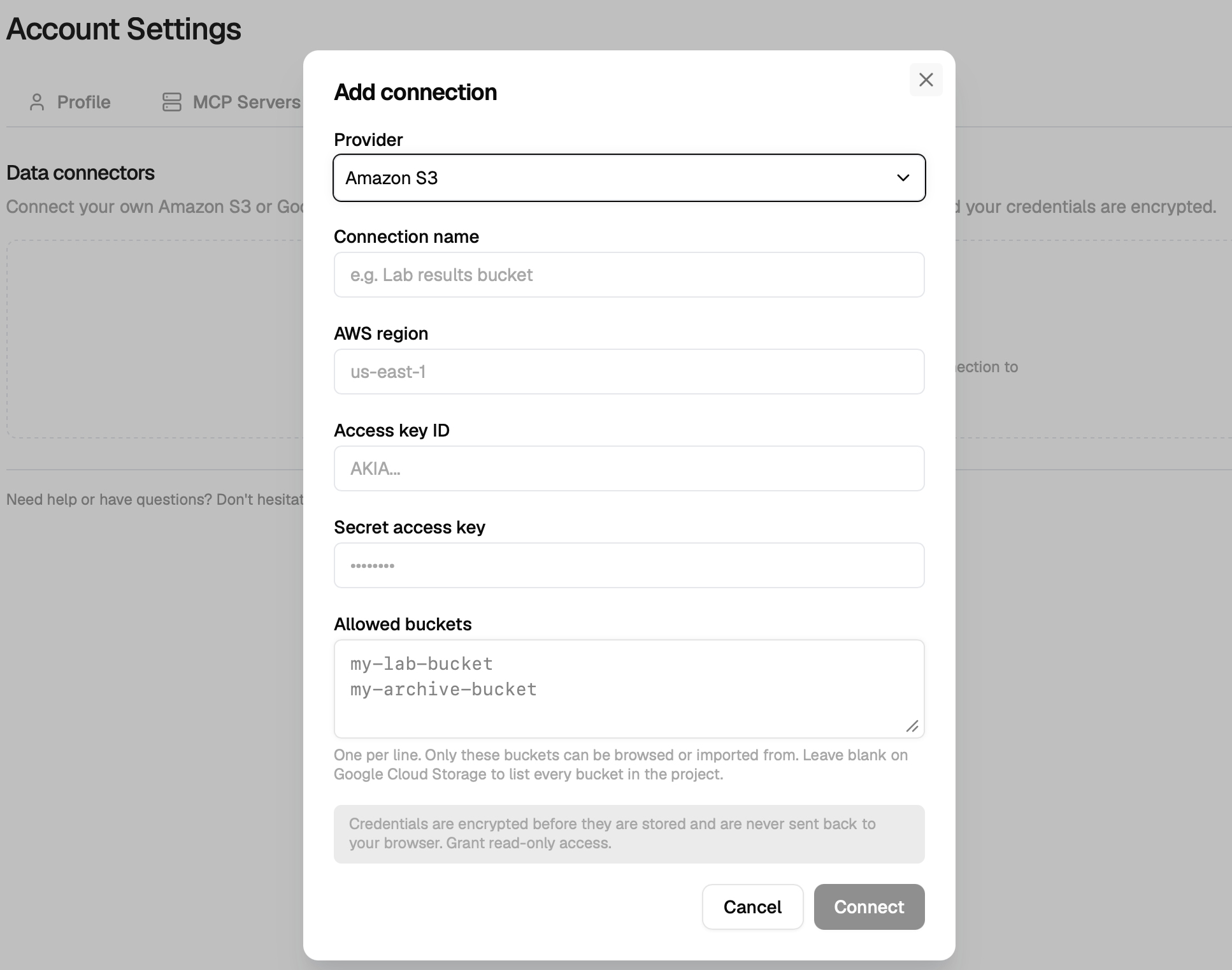
We validate access immediately on save, so a bad key or a typo in the bucket name shows up as a clear error right away instead of failing silently the first time you try to import something.
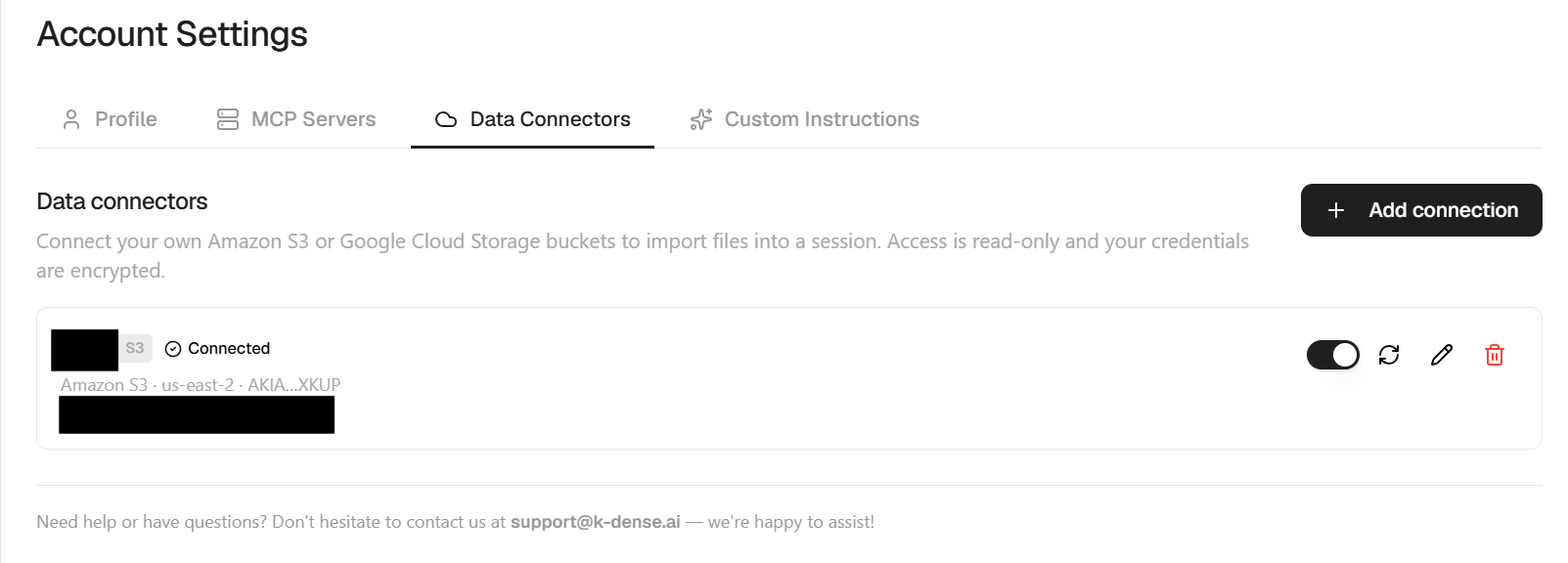
Once connected, the connection shows up in your list with its status, provider, and region, and you can toggle it off, edit it, or remove it at any time.
How to import files
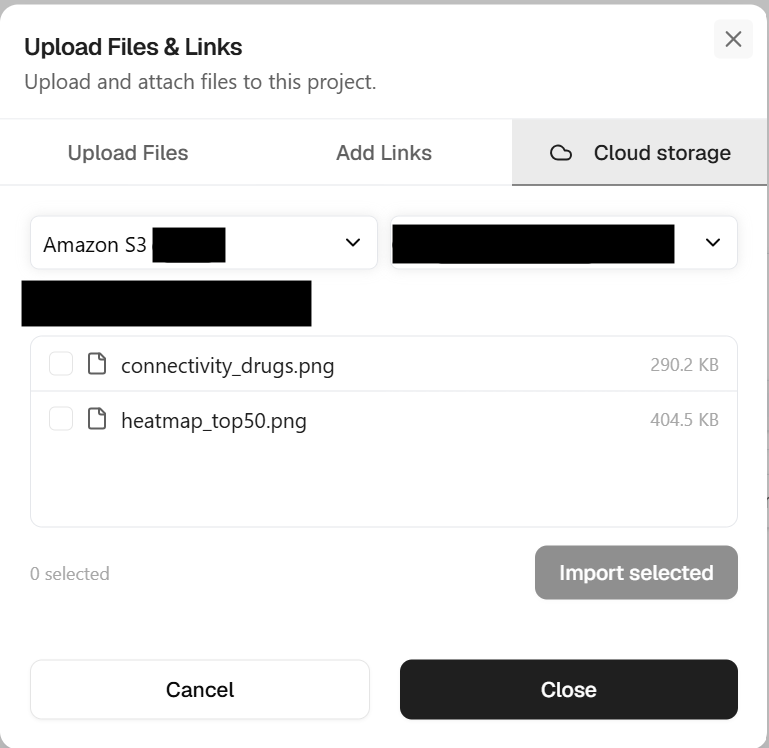
From inside a chat, open Upload → Cloud storage, pick the connector, and browse the bucket directly. Select the files you need and import them. They land in the session like any other attachment, ready to be analyzed alongside everything else.
Read-only by design
Data Connectors are read-only. K-Dense Web can browse and import from a connected bucket, but it can never write to, modify, or delete anything in it. Credentials are encrypted before they're stored and are never sent back to your browser after the initial setup. When you create a connection, use a read-only IAM key or a service account scoped to object-viewer permissions only, so even in the worst case the credential can't do more than the feature needs.
Get started
Data Connectors are live now for every K-Dense Web account. Head to Account Settings → Data Connectors to connect your first bucket, or visit app.k-dense.ai to get started.